
Some prerequisite exists:
Source and target grids MUST have the exact same name
The number of columns in the source and target grids must be the same.
The grid in the source project must have /Outputlink flag (can be added within Excel or with the flag manager).
The grid in the target project must have /Inputlink flag (can be added within Excel or with the flag manager).
The source project must have been run and have saved results.
Connect two or more projects
Go into your target project (the one that receives data, with /InputLink grids) and click on the new button which appeared on the left action bar. If you don't see it :
Check that you have /InputLink grids in your project
If you are using the partial load feature, "All" must be selected to access the interlink manager

You will get the list of all grids in the project that are flagged with /InputLink. Interlink manager enables you to match each of these grids with one or several source projects.

To add one or more source projects, click on the green button Manage linked projects. Select Add a new project on the new pop-up that appeared, find your project and click on the Create link button. Note that you will find only projects with /OutputLink grids.
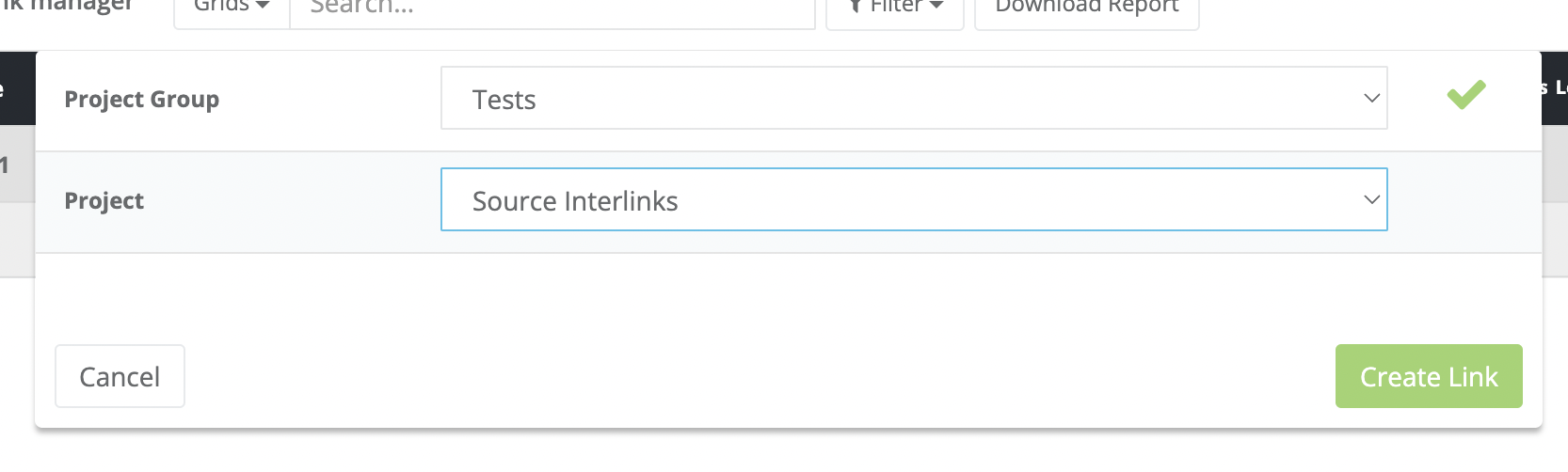
You can import more than one source project to gather several outputs into the same input grid:

A few settings are available for each project linked:
- If you are using the Analysis of Changes feature, if you want to link AOC data.
- If your data should be retrieved at each load and/or at each run. Otherwise, you will need to do it by hand.
- If you want to automatically flatten all loops for the data retrieved from this project.
These settings can be changed later by coming back on the Manage linked projects window.
Automatch / Manual match behavior
The matching system will automatically link /Outputlink grids with the same name/size from all sources projects to your /InputLink grids.
You can also disable manually one link from auto-update with the green checkbox on the right.
Your links can be displayed at the instance level by clicking on the blue Display instances button:

Your linked values will be in GREEN in non-Excel-style mode, within your Milliman Mind grids.
Solving conflicts / unmatched grids
It can happen that one grid matches with several /OutputLink grids. In this case, a dropdown list will allow you to choose which one is the chosen one.
If your projects have instances, they will be matched automatically based on instances' names. If for example, you want to match instance T4 with instance T6, you can choose to override the link then select by hand the wanted instance.

Loops handling
If your source grid has loops, a Loop button will appear on the right.
By clicking on it, you will be asked which loop(s) index you want to link. You can also choose to flatten all indexes into the target grid.
Headers sync
By default, headers are not synchronized when linking grids. To force this behavior, please click on this button for the grids you want headers to be synced.

Missing instances
Next to your source project name, an exclamation mark icon can appear. If you click on it you will see a tooltip that shows missing instances on the source project from the target project, and from the target project on the source project.
Navigate / Search / Filter into the Interlink manager
Milliman Mind offers some powerful search and filter features for the interlink manager.
First, a search field allows you to search a specific link by Instance name or grid name:

Then, a powerful filter system allows you to only display links with the status you've chosen:

Export an interlink CSV report
This feature also offers the possibility to download a complete report of your links in a CSV format, which you will be able to open with Microsoft Excel and analyze.
Update linked values
If you change cells in the source project, save it, then the target project will change too. Depending on your settings, it can happen at: a load of the project, run of calculations, or if it is manually triggered.
Before that, a label will show you specific cases when your links are not yet updated:
- An outdated label will give you the information that some new data could be retrieved for this specific link.
- A deleted label will give you the information that the source project doesn't have any more data for this specific link.

Links in the Audit trail
All interlink actions are listed in the Audit trail and can be easily undone.

More info can be displayed by clicking on the Value column button.